> ## Documentation Index
> Fetch the complete documentation index at: https://docs.symbioticsec.ai/llms.txt
> Use this file to discover all available pages before exploring further.
# Treeview
> How does the treeview work ?
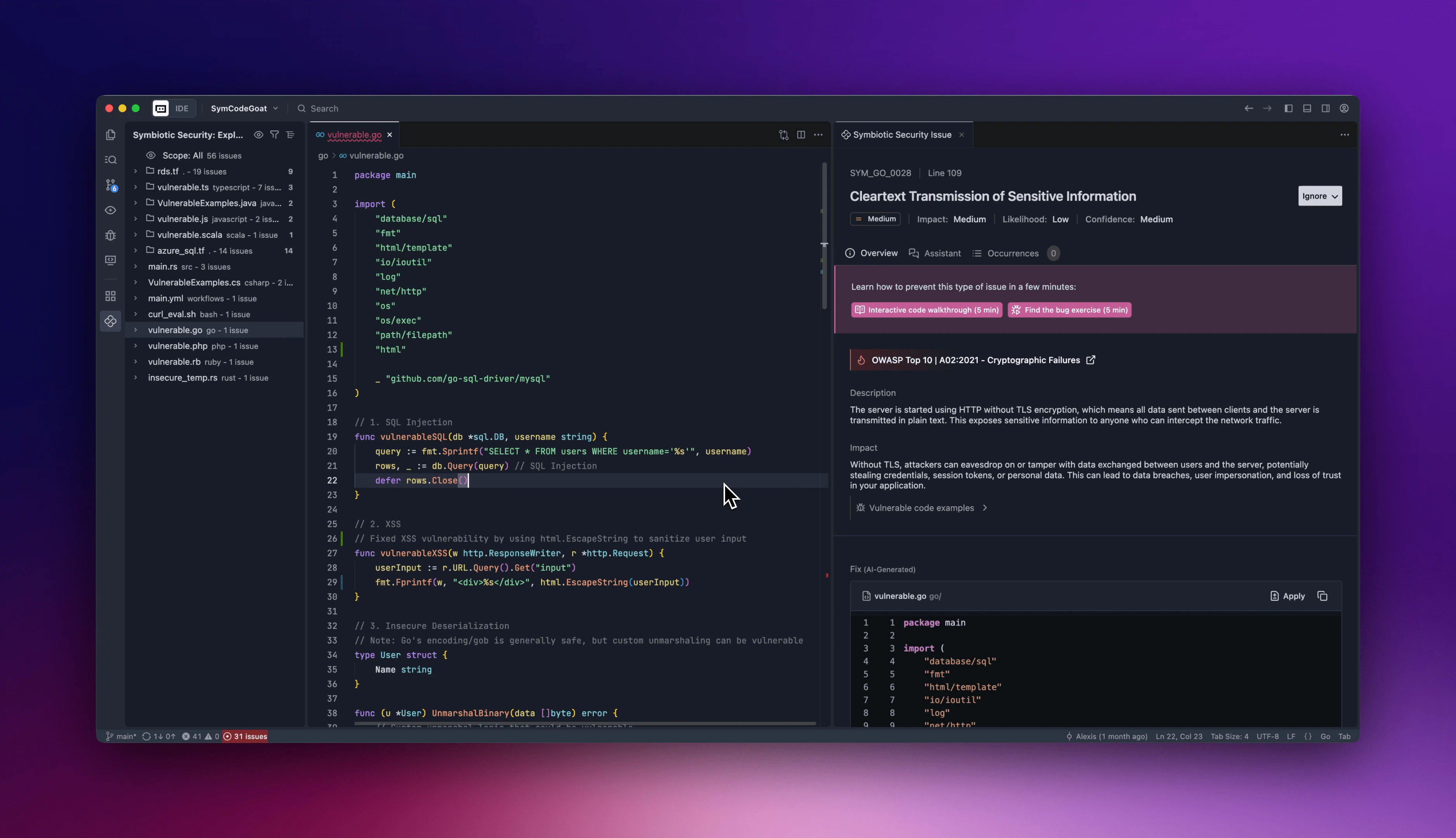
Our treeview allows you to see all vulnerabilities detected in the current workspace.
By default issues are grouped by file and ordered by severity.
 ## Icons
Critical
High
Medium
Low
Ignored issues are shown using this icon
## Actions
Using actions in the treeview you can filter issues, change the grouping or search for a specific vulnerability.
### Scopes
To see only issues relevant on your context, you can change the scope of the treeview by either :
* Clicking on the scope at the top of the treeview
* Clicking on the icon at the top right of the treeview
* Using the command `Symbiotic Security: Change Scope`
It will open a selection menu to allow you to choose between :
* All: Show all issues detected in the repository
* Local: Show only issues detected in staged files
* Branch: Show only issues detected in files modified in the current branch in the last 10 days
* Recent: Show only issues detected in files modified in the last 10 days
* Active: Show all non-historical issues
If the scope you have selected is empty you will be invite to change the scope or to reset your filters
### Filters
By clicking on the icon at the top right of the treeview you can filter the issues by severity, policy breaching or ignored.
### Grouping
By clicking on the icon at the top right of the treeview you can change the grouping of the issues either by vulnerabilities or files.
## Icons
Critical
High
Medium
Low
Ignored issues are shown using this icon
## Actions
Using actions in the treeview you can filter issues, change the grouping or search for a specific vulnerability.
### Scopes
To see only issues relevant on your context, you can change the scope of the treeview by either :
* Clicking on the scope at the top of the treeview
* Clicking on the icon at the top right of the treeview
* Using the command `Symbiotic Security: Change Scope`
It will open a selection menu to allow you to choose between :
* All: Show all issues detected in the repository
* Local: Show only issues detected in staged files
* Branch: Show only issues detected in files modified in the current branch in the last 10 days
* Recent: Show only issues detected in files modified in the last 10 days
* Active: Show all non-historical issues
If the scope you have selected is empty you will be invite to change the scope or to reset your filters
### Filters
By clicking on the icon at the top right of the treeview you can filter the issues by severity, policy breaching or ignored.
### Grouping
By clicking on the icon at the top right of the treeview you can change the grouping of the issues either by vulnerabilities or files.